
Overview
Do you regularly use the same images? Following lets you bookmark frequently used assets so they're always easy to find. It’s a quick way to keep destination hero images, best-selling product shots, or signature experience photos within reach without having to search for them every time.
Follow an asset
- Hover over an asset.
- Select Follow Asset.
The asset is added to your personal Following list.
View your Following list
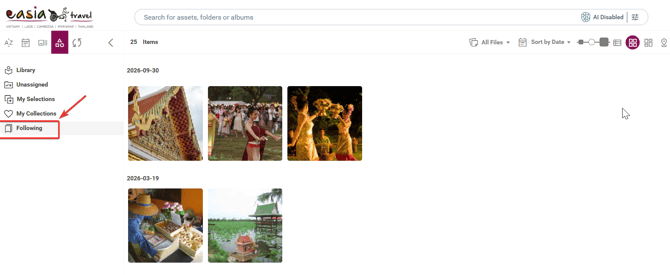
Open Following from the left navigation panel to view all the assets you've bookmarked and reopen them quickly without running another search.
Unfollow an asset
- Open Following
- Select the asset you want to remove
- Select Unfollow Asset
This removes only the bookmark. The original asset remains available in the Media Library, and because Following is personal, it doesn’t affect the asset for other users.
When to use Following vs. Collections
Use the "Following" for quick, personal access to individual images you return to regularly. Use "Collections" when you need to organize multiple images around a project, client, destination, or campaign, or when you need to share a group of assets with others.
- Following: personal favorites for quick access.
- Collections: organized groups of images for projects and sharing.
Tip: Follow your go-to hero image for each destination you regularly promote. It turns a recurring search into a one-click reopen.
What's next?
Once your shortlist, Collection, or Share Link is ready, download the files you need for your project.
→ Next article: Download Images for Your Project