
Overview
Ready to start using Easia’s approved visuals in your own marketing work? This article explains how to request access, activate your account, and sign in for the first time.
Why this matters
Once your account is active, you can start building better marketing materials immediately, such as a destination page, a proposal, a social post, or a hotel factsheet, using imagery that’s already approved for professional use. You don’t need to search stock photo sites or wait for the Easia Travel team.
Before you begin
To use the Media Library, you’ll need:
- An approved Media Library account
- Access to the email address used during registration
- A stable internet connection to complete activation
If you don’t have an account yet, complete the Media Library access request form.
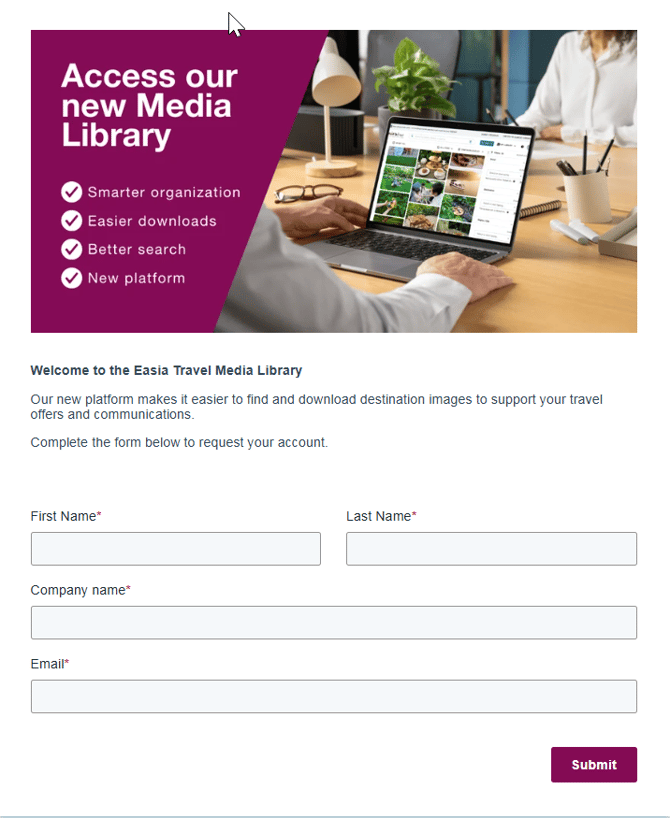
Step 1: Request access
Complete the Media Library access request form using your business email address.
Please allow up to 24 hours for the Easia Travel team to review your request. If your request is approved, you’ll receive an activation email with instructions to activate your Media Library account.
Tip: Use your company email address whenever possible. It speeds up approval.
Step 2: Activate your account
Once your access is approved, you’ll receive an activation email.
- Open the activation email.
- Select Activate Account.
- Follow the instructions to create your password and activate your account.
Once activation is complete, you can sign in to the Media Library.
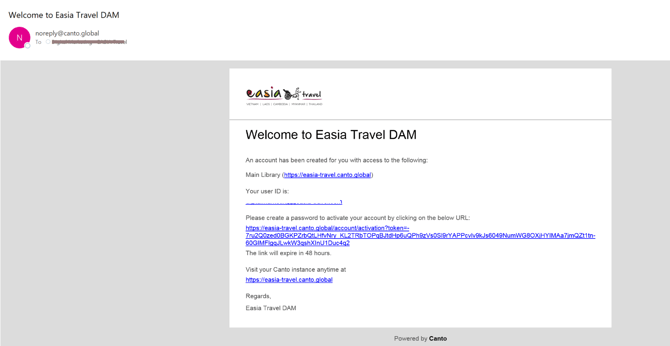
Important: Your activation link is valid for 48 hours. If it expires, contact your Easia Travel representative or email digitalmarketing@easia-travel.com to request a new activation email.
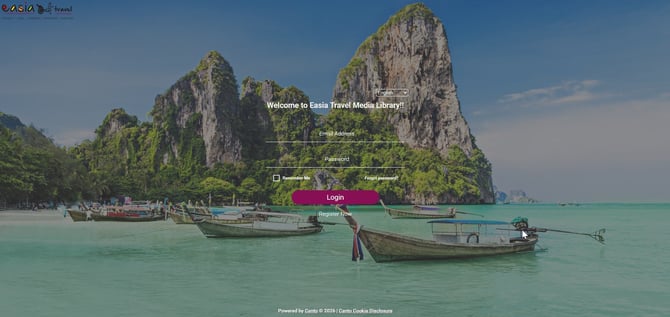
Step 3: Sign in
After activating your account:
- Open the Media Library.
- Enter the email address linked to your Media Library account.
- Enter your password.
- Select Sign In.
You’ll then be on the Media Library homepage, where you can start searching, downloading, and organizing images for your marketing projects.
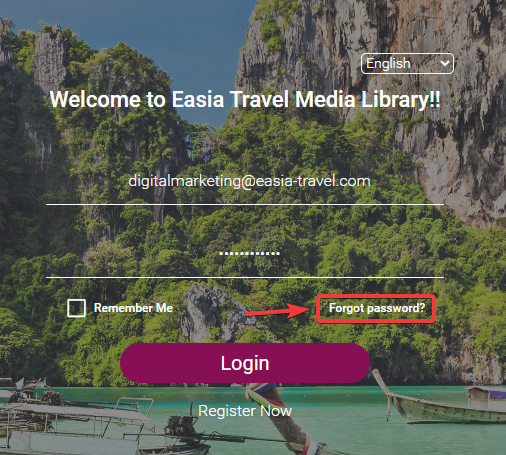
Forgot your password?
- Select "Forgot Password?" on the sign-in page.
- Confirm that you’re not a robot.
- Follow the instructions in the password reset email.
Having trouble accessing your account?
If you’ve followed the steps above and still can’t access the Media Library, see Get Back Into the Media Library for troubleshooting steps.
If you still need assistance, contact your Easia Travel representative or email digitalmarketing@easia-travel.com.
What’s next?
Now that your account is set up, you can find the right visuals for your next project.
→ Next article: Find the Right Images for Your Project