
Overview
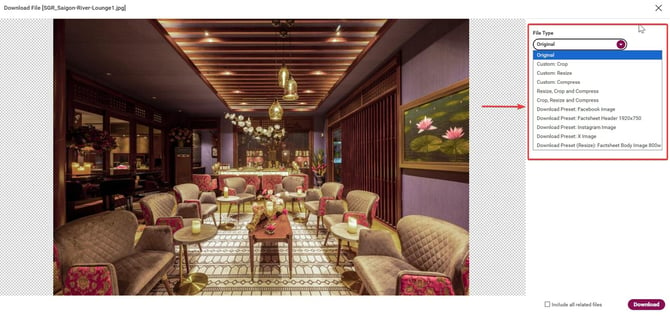
Not sure whether to grab the Original file or a resized version? Not every project needs the highest-resolution file - using the wrong one is how websites end up slow, and brochures end up blurry. This article maps each download option to the outputs it's best suited for, so you spend less time editing and more time publishing.
Why this matters
You don’t need to think in terms of compression or dots per inch (DPI). Think in terms of outcomes: a printed brochure, a website page, an email, a social post, or a factsheet. Match your download to that outcome, and you’re done in one step
| I am creating... | Recommended option | Why |
| A printed brochure or design file | Original | Highest quality, ready for professional design work. |
| A website page or presentation | Custom: Resize | Change dimensions while keeping proportions - lighter, faster-loading files. |
| A social media post | Download Preset (or Custom: Crop if no preset fits) | Presets match exact platform dimensions; crop gives manual control |
| A website banner | Custom: Crop, then Custom: Resize and Custom: Compress if needed | Adjust composition to fit the space, then optimize file size. |
| An email attachment or fast-loading page | Custom: Compress | Smaller file size for easier sharing. |
| A polished web-ready image | Resize, Crop and Compress | Combine all three for a fully optimized file. |
Download the Original image
Use Original when you need the highest available quality. It’s recommended for professional printing, brochures, other marketing materials, and future editing.
Resize an image
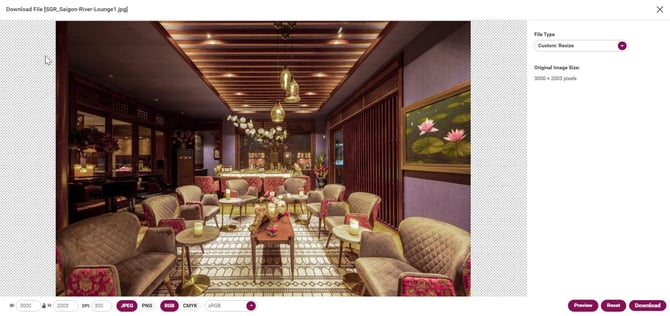
Use Custom: Resize to change the image dimensions while keeping its proportions. You can specify width, height, and DPI.
Crop an image
Use Custom: Crop to adjust composition before downloading. Available ratios include Freeform, 1:1, 3:4, 4:3, and 16:9. It’s recommended for website banners, social media, and custom layouts.
Note: Cropping changes composition and may reduce file size, but it does not reduce image quality.
Compress an image
Use Compress to reduce file size. You can adjust compression quality, preview the result, and compare the original and compressed versions before downloading. Recommended for email attachments, faster-loading web pages, and online sharing.
Combine options: Resize, Crop, and Compress
To prepare a fully web-ready file, use Resize, Crop and Compress or Crop, Resize and Compress. Both combine resizing for dimensions, cropping for composition, and compression for file size.
Preview before downloading
Most download options include a preview, so you can confirm the result meets your requirements before saving the file.
Common mistakes
- Using a compressed image for print, which makes it look soft or pixelated.
- Using the original file for the web, which slows page loading.
- Cropping out important context, such as a hotel’s signature view or a destination landmark.
Marketing Tip: When in doubt, download the Original once and keep it safe - you can always create a resized or compressed version from it later without going back to the Media Library.
What's next?
If you regularly publish to social media, use a ready-made Download Preset so you don’t have to set the dimensions each time.
→ Next article: Save Time with Download Presets