Looking for high-quality travel images? The Easia Media Library gives you access to a curated collection of destination, experience, and property visuals ready for presentations, websites, and marketing materials.
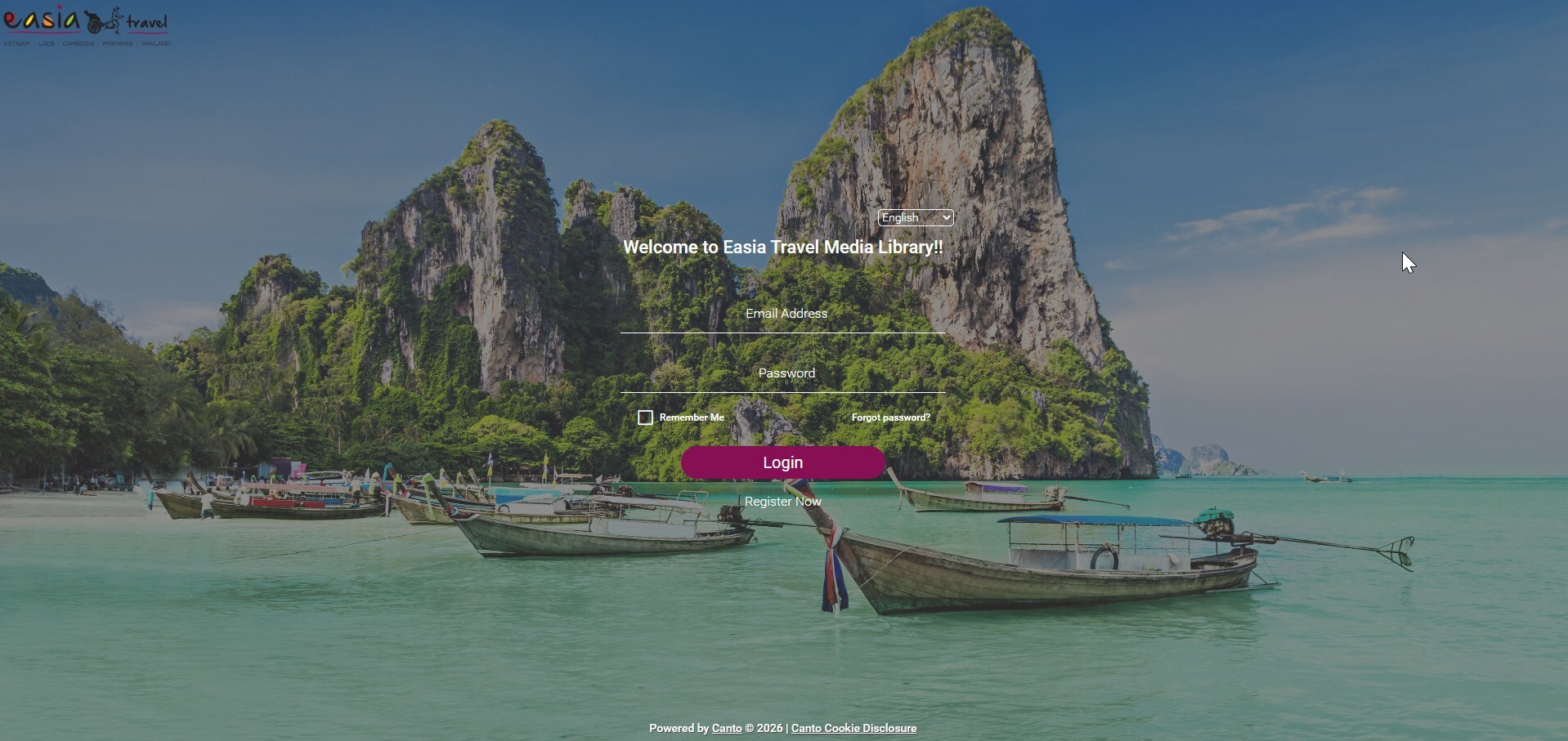
Easia Media Library login screen
NEW USERS
- Register using your company email by filling in the sign-up form
- Wait for account approval
- Check your inbox for the activation email
Important: The activation email is sent via Canto, so it may look different from regular Easia emails. It's not a promotional message — it's required to activate your account.
Tip: If you don't see the email, check your spam or junk folder.
RETURNING USERS
- Visit Media Library homepage
- Log in using your registered account
- Access thousands of approved hotel and destination images
🔎 Find Images in Seconds
The fastest searches combine keywords with context.
Try searching by destination, experience, hotel, attraction, or theme. Once you have results, use Filters on the right panel to narrow them down and uncover related content.
Instead of scrolling through hundreds of images, you can quickly focus on the ones that match your needs.
Search is the starting point. Filters and Tags help you find the right image faster.
HOW TO SEARCH THE ASSETS
Learn how to search assets quickly using keywords, Filters, and Tags.
👁 Preview Before Downloading
Before downloading, take a moment to Preview the image.
Preview mode allows you to:
- Check image quality
- Review composition
- View keywords and metadata
- Confirm suitability for your project
A quick Preview helps you choose the right image and avoid unnecessary downloads.
Preview first to save time when selecting multiple images.
WHAT THE ASSET PREVIEW LOOKS LIKE
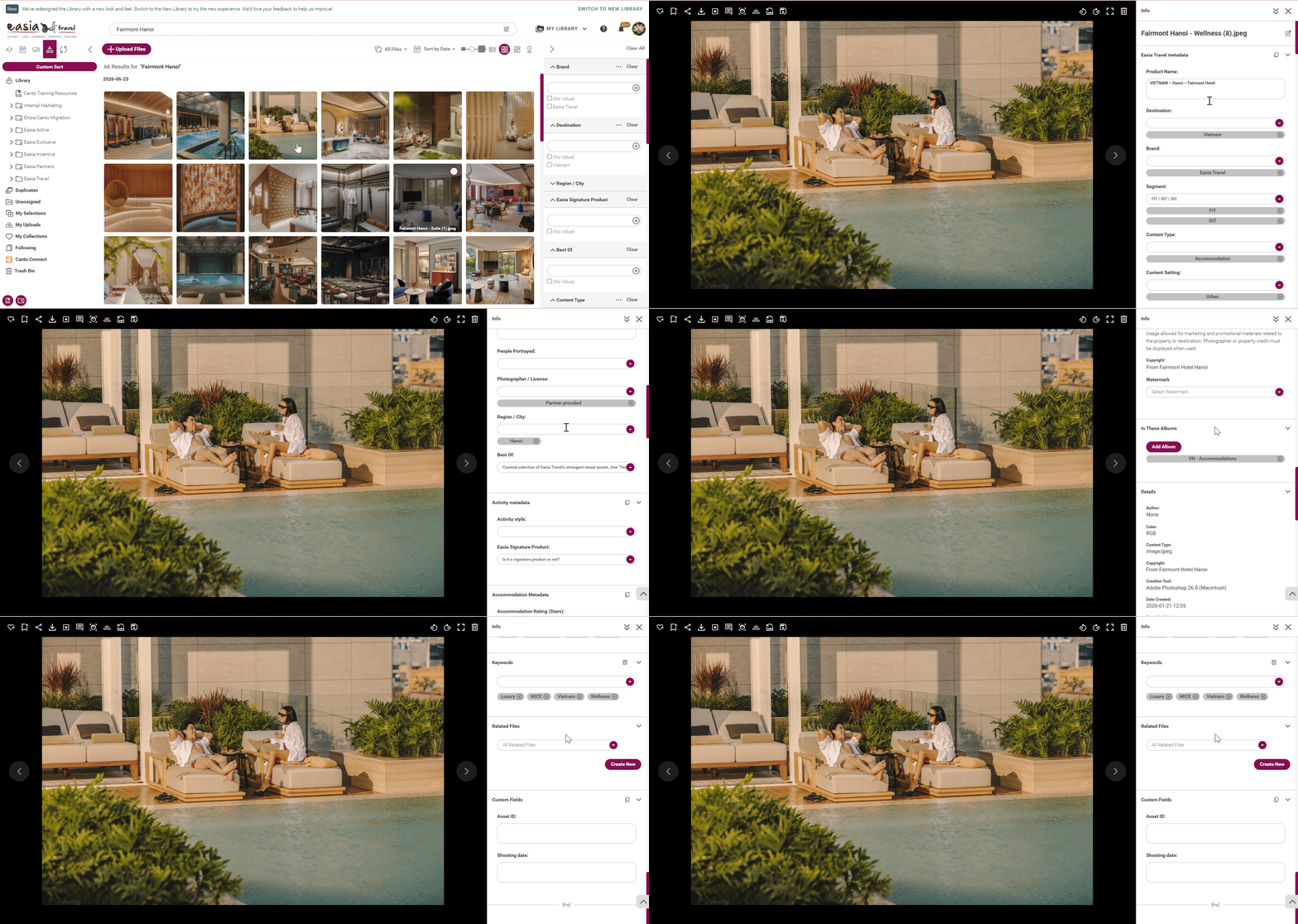
Preview images first to check quality, metadata, and suitability before downloading.
⬇ Download the Right Version
HOW TO DOWNLOAD THE ASSETS
Learn how to download the correct asset version for each use case.
Choose the version that best fits your project.
| Use Case | Recommended Version |
|---|---|
| Download the original image in its highest quality without any changes. | Original |
| Crop the image to the area you need. You can also choose the output file format (JPEG/PNG), color profile (RGB/CMYK), and other export settings before downloading. | Custom: Crop |
| Resize the image to specific dimensions. You can also choose the output file format, color profile, and other export settings. | Custom: Resize |
| Reduce the file size while maintaining acceptable image quality. You can adjust the compression level and choose the output file format and color profile. | Custom: Compress |
| Resize, crop, and compress the image in one workflow. You can also customize the output file format and color profile. | Resize, Crop and Compress |
| Download a pre-configured image optimized for Facebook posts. | Download Preset: Facebook Image |
| Download a pre-configured image optimized for Instagram posts. | Download Preset: Instagram Image |
| Download a pre-configured image optimized for X (Twitter) posts. | Download Preset: X Image |
Start with the size you actually need rather than downloading the largest version.
Keep your assets organized, easy to find, and simple to share with colleagues and partners.
📁 Save Images with Collections
Found useful images? Save them to a Collection so you can easily revisit them later.
Collections are ideal for:
- Client proposals
- Marketing campaigns
- Destination promotions
- Team projects
Create Collection → Add Images → Review → Share
HOW TO CREATE A COLLECTION
Create Collections to keep related images together and revisit them later.
🔗 Share Images in One Click
Need to share images quickly? Skip the downloads.
Generate a shareable link and send it directly to colleagues, partners, or clients.
You can also add passwords or expiry dates for additional control.
HOW TO SHARE THE ASSETS
Watch how to create and share a Collection link in just a few clicks.
⭐ Use My Selections
My Selections acts as a temporary workspace while you browse.
Add images as you go, review them later, and compare options before downloading or organizing them into Collections.
Use My Selections as your shortlist before creating Collections.
HOW TO USE 'MY SELECTIONS'
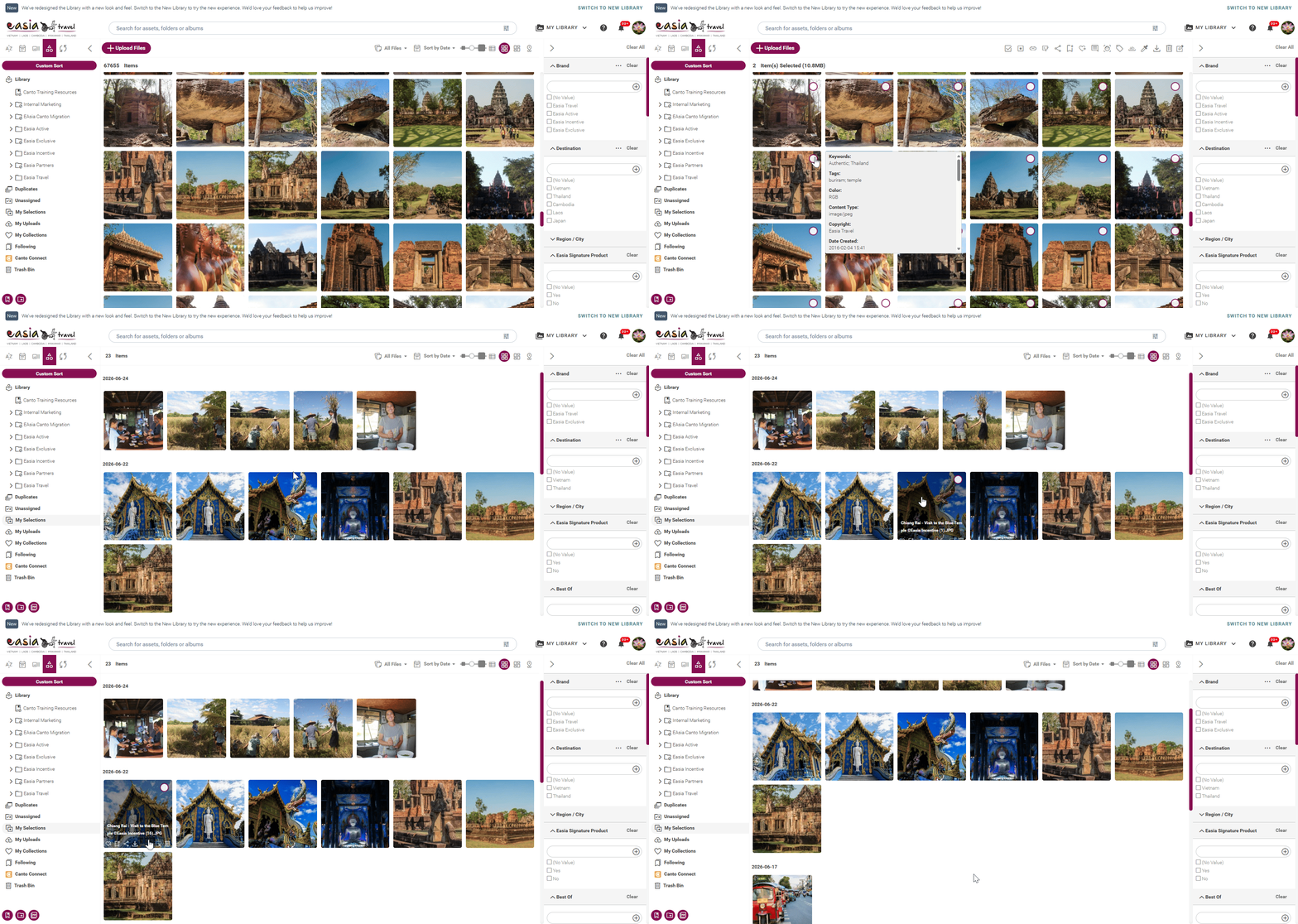
Save promising assets to My Selections while browsing and review them later.
🔔 Stay Updated with Following
Working with the same destinations or themes regularly?
Follow destinations, themes, or categories that matter to you and receive updates when new content is added.
Follow key destinations to keep your content fresh and up to date.
HOW TO USE 'FOLLOWING'
Follow destinations and categories to stay informed when new content becomes available.
Learn how the Media Library is organized so you can browse content faster and find what you need more efficiently.
🎥 Understanding the Library Structure
New to the Media Library? Start here to understand the difference between Albums and Collections.
HOW "ALBUMS" & "COLLECTIONS" WORK
Learn how Albums and Collections work together in the Media Library.
🗂 Browse by Destination and Category
The Media Library is organized to make browsing simple.
Destination → Category → Asset
LIBRARY STRUCTURE IN MEDIA LIBRARY
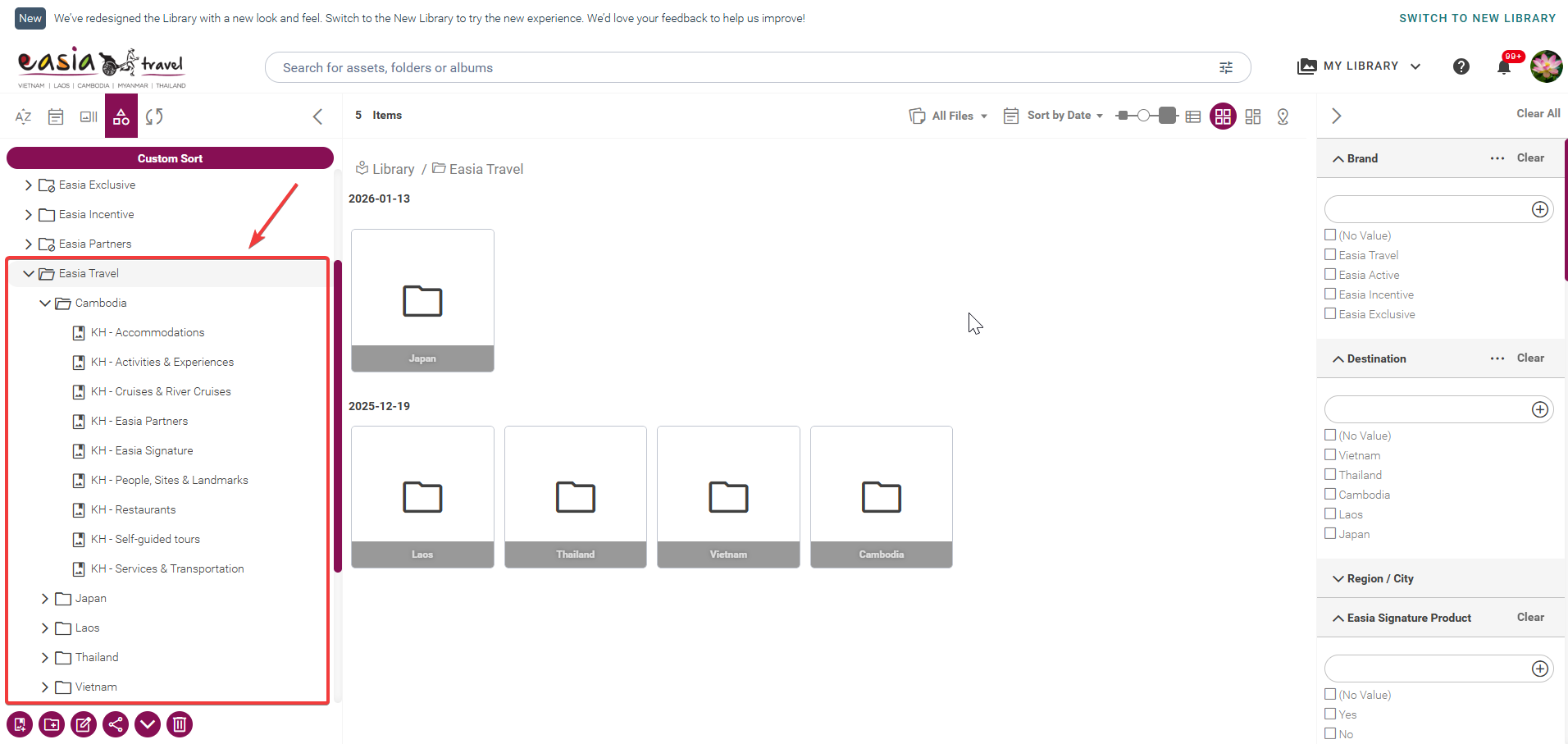
Example: Easia Travel → Cambodia → KH - Accommodations
Expand the Library Structure to browse assets by Brand, Destination, and Category. It's the easiest way to explore everything available in the Media Library.
Recommended Workflow
Use this practical workflow when preparing assets for proposals, presentations, campaigns, or client sharing.
SEARCH → PREVIEW → MY SELECTIONS → COLLECTIONS → DOWNLOAD or SHARE
Small Habits That Save Time
- Search before browsing
- Preview images before downloading
- Save useful images to My Selections
- Create Collections for each proposal or project
- Share links instead of sending attachments
Consistent use of these features can save hours each week.
Quick Fixes When Things Don't Work
Having trouble accessing or using the Media Library? Here are a few quick checks.
Didn't receive the activation email?
Check your spam or junk folder.
Received the email but didn't open it?
The activation email is sent via Canto and may look unfamiliar. It is required to activate your account.
Activation link not working?
The activation link is valid for 48 hours. If it has expired, request a new activation link.
Can't log in?
Make sure your account has been activated, or use the Password Reset option.
Can't find the images you need?
Try using more specific keywords or apply Filters.
Always activate your account as soon as you receive the email to avoid link expiration.
If you're still experiencing issues, please contact us at:
📧 digitalmarketing@easia-travel.com